
Barcode Scanner Android Setup for Resellers
You're in a Goodwill aisle with a cart of clearance toys when the barcode refuses to read. The label is under glossy shrink wrap, the overhead lights are reflecting off it, and the reseller beside you has already grabbed the next item. By the time you tilt your phone, wipe the packaging, and try again, you've lost the sourcing rhythm that helps you find profitable BOLOs.
That's the core barcode scanner Android problem. The app matters, but so do autofocus, lighting, connection mode, battery settings, and the physical condition of every label. A scan is only useful when it moves quickly from product identification to a clear buy-or-pass decision based on sold comps, fees, shipping, and net profit.
Table of Contents
- The Reality of Android Scanning in the Aisles
- Choosing External Hardware for Heavy Sourcing
- Connecting Bluetooth and USB Scanners to Android
- Tuning Your Phone Camera for Native App Scanning
- Building a Fast Pricing Workflow with ScanFlip AI
- Troubleshooting Common Android Scanning Failures
The Reality of Android Scanning in the Aisles
A scanner failure can cost more than a few seconds. At a Saturday estate sale, a sealed board game with a clean UPC might be worth checking immediately. If your phone keeps hunting for focus, you may put it back while another picker moves it into their pile. In a dim Goodwill bin room, the same thing happens with boxed electronics, books, and media. The item isn't necessarily rare, but the opportunity disappears because the workflow breaks.
Android phones vary widely in camera behavior. One device locks focus quickly on a flat retail box, while another struggles with reflective packaging or a tiny barcode printed near a fold. Cheap external scanners can create a different problem. They may pair inconsistently, support only certain symbologies, or send scan data somewhere your sourcing app can't use.
Practical rule: Treat your phone, scanner, and pricing workflow as one sourcing system. A fast decode that doesn't produce useful profit context is still wasted motion.
Android scanning has grown far beyond basic code reading. A market report valued the global Android barcode scanner market at $4.8 billion in 2025, and projected it to reach $10.2 billion by 2034, implying an 8.7% CAGR from 2026 to 2034. The same report estimated that 2D scanners held a 43.6% share in 2025, while retail accounted for 29.0% of revenue. Those figures are reported in Scandit's overview of barcode scanner apps for iOS and Android, and they reflect why Android scanning now sits inside serious retail workflows, not just checkout counters.
For resellers, the useful lesson is simple. Your scanner should reduce hesitation, not add another technical task. A practical barcode scanner guide for resellers should always connect the physical read to the financial decision. If the UPC is damaged, missing, or tied to a weak product page, you need a fallback instead of standing in the aisle trying the same angle repeatedly.
Choosing External Hardware for Heavy Sourcing
Holding a phone against hundreds of books during a library cull gets uncomfortable quickly. An external scanner can help, but the right type depends on how you source, how much gear you carry, and whether a dropped connection would ruin your workflow.
| Scanner Type | Best Sourcing Environment | Pros for Resellers | Cons for Resellers |
|---|---|---|---|
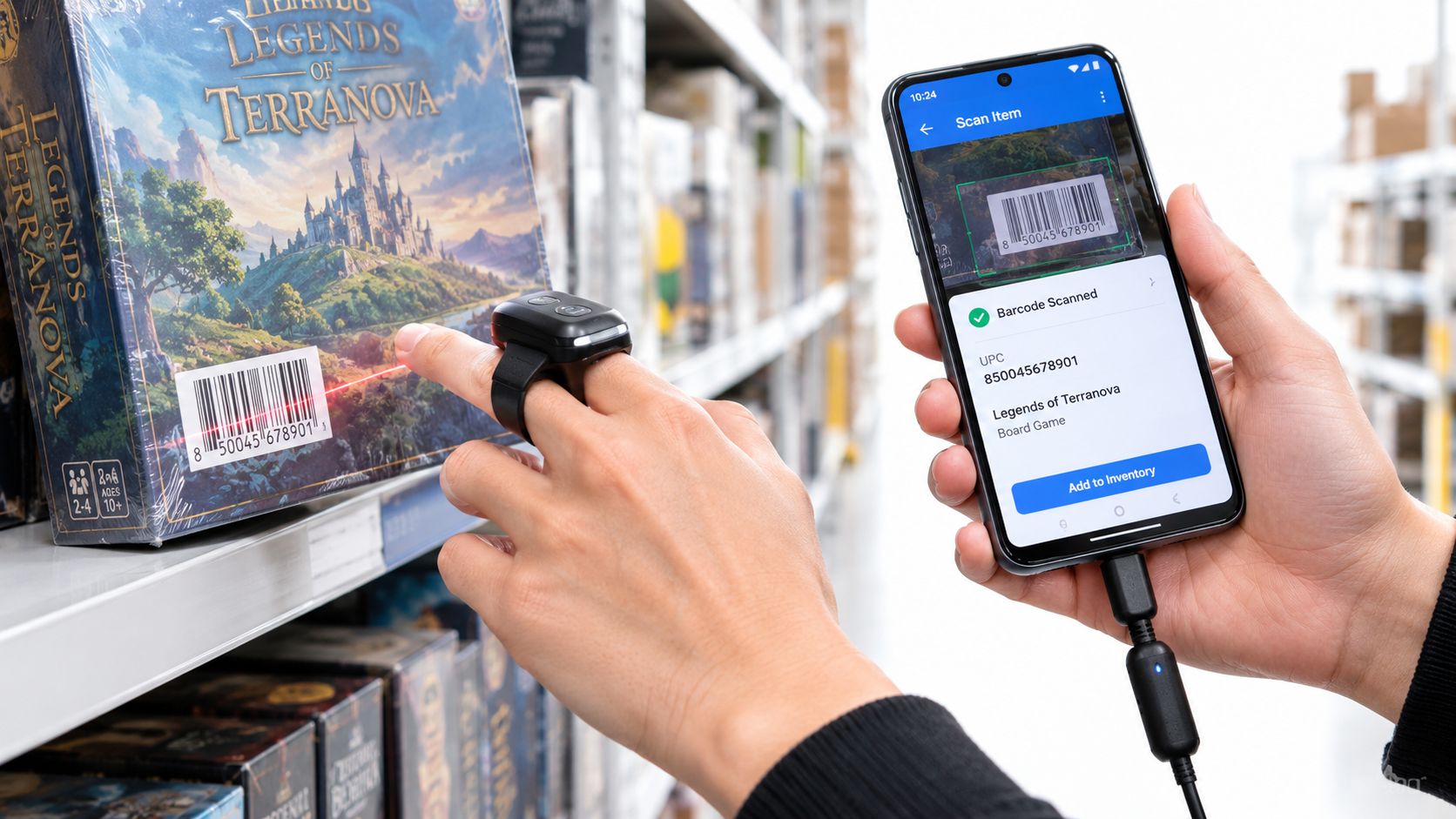
| Bluetooth ring scanner | Warehouse sales, bins, ladder work | Hands-free use, quick trigger access, good for repeated scans | Battery needs charging, pairing can drop, small controls |
| Bluetooth wand scanner | Retail arbitrage, book tables, estate-sale piles | Faster grip changes, comfortable for steady scanning, wireless movement | Another device to carry, radio interference can interrupt work |
| Wired USB-C scanner | Library culls, long book runs, stationary sorting | No scanner battery, consistent connection, dependable for high-volume sessions | Cable limits movement, adapter compatibility matters, phone port gets occupied |
A Bluetooth ring scanner makes sense when both hands are busy. If you're climbing around a warehouse sale or pulling items from a low bin, keeping the phone in a pocket or holster can be practical. The trade-off is maintenance. A dead ring battery or an aggressive sleep setting can leave you manually entering UPCs.
A wireless wand is more comfortable for repeated trigger presses. It suits a cart-based retail arbitrage run where the phone stays in one hand and the scanner stays in the other. Look for a model with clear HID support, a sturdy trigger, and a protective housing that can tolerate dust and occasional drops.
A USB-C wand is the boring option that often works best in a controlled run. At a library sale, the scanner can stay connected while you move books past it. There's no Bluetooth pairing screen and no radio dropout, but the cable can snag on boxes, and an adapter may draw power from the phone.
Check whether the scanner reads both 1D and 2D formats before buying. UPC and EAN are 1D examples, while QR and PDF417 are 2D formats, as explained in this Android barcode scanner reference. Books, games, and many retail products usually present 1D codes, but a reseller handling tickets, shipping labels, or collectibles may need 2D capability.
Connecting Bluetooth and USB Scanners to Android
Pairing problems usually come from a mode mismatch, not a dead scanner. Most Android sourcing workflows need the scanner to behave like a keyboard. That's HID, or Human Interface Device, mode. SPP, or Serial Port Profile, sends serial data through a different communication path and may require a dedicated app or integration.
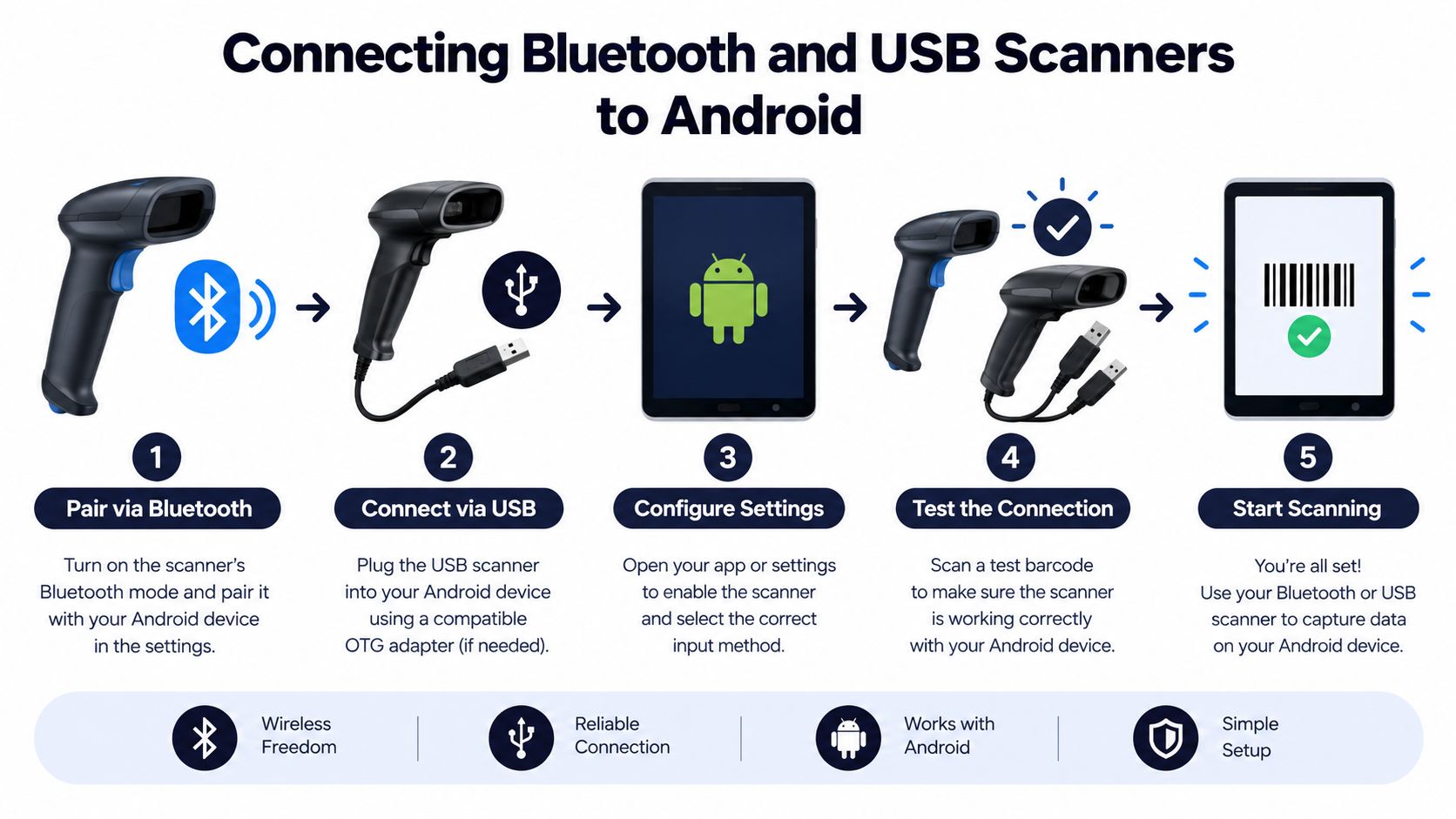
Use this setup sequence before taking the scanner into a store:
- Charge and reset the scanner. Confirm it has power, then use the manufacturer's reset barcode if a previous phone or tablet is still remembered.
- Select Bluetooth HID mode. The mode barcode is often printed in the manual. Don't assume the default is keyboard emulation.
- Pair through Android settings. Open Bluetooth settings, select the scanner, and wait for Android to show it as connected.
- Test in a plain text field. Scan into a notes app. If the digits don't appear there, your sourcing app isn't the problem yet.
- Add a suffix if needed. Configure an Enter or Tab keystroke after each scan so the app submits the code instead of leaving it in an unfinished search field.
A scanner that beeps but produces no text is commonly in SPP mode, connected to another device, or configured with a suffix your app doesn't recognize. Test the scanner before entering the store, not beside a clearance shelf with someone waiting behind you.
For USB-C hardware, use an Android-compatible OTG adapter and test the exact combination of phone, adapter, and scanner. Some phones limit power output, and a scanner with a bright aiming light can contribute to battery drain during a long run. Keep a short cable, avoid loose adapters, and disconnect other USB accessories.
The same principle applies to an Android barcode workflow for eBay sourcing. The scan should land in the intended search field, trigger the lookup, and leave you ready to inspect sold comps. If you still have to copy, paste, and move after every read, external hardware hasn't solved the bottleneck.
Tuning Your Phone Camera for Native App Scanning
In a dusty aisle, camera problems usually appear before software problems. Glare can wash out the bars, motion blur can smear narrow elements, and a creased label can distort the pattern a decoder expects. Glossy cosmetics, game boxes, and shrink-wrapped electronics often look readable to your eye while reflecting a bright patch into the camera.
Google recommends higher-resolution streams such as 1280×720 or 1920×1080 to give the scanner more working distance. Its guidance also specifies that the smallest bar element should be at least 2 pixels wide and tall for accurate decoding. See Google's Android barcode scanning documentation for the implementation details.
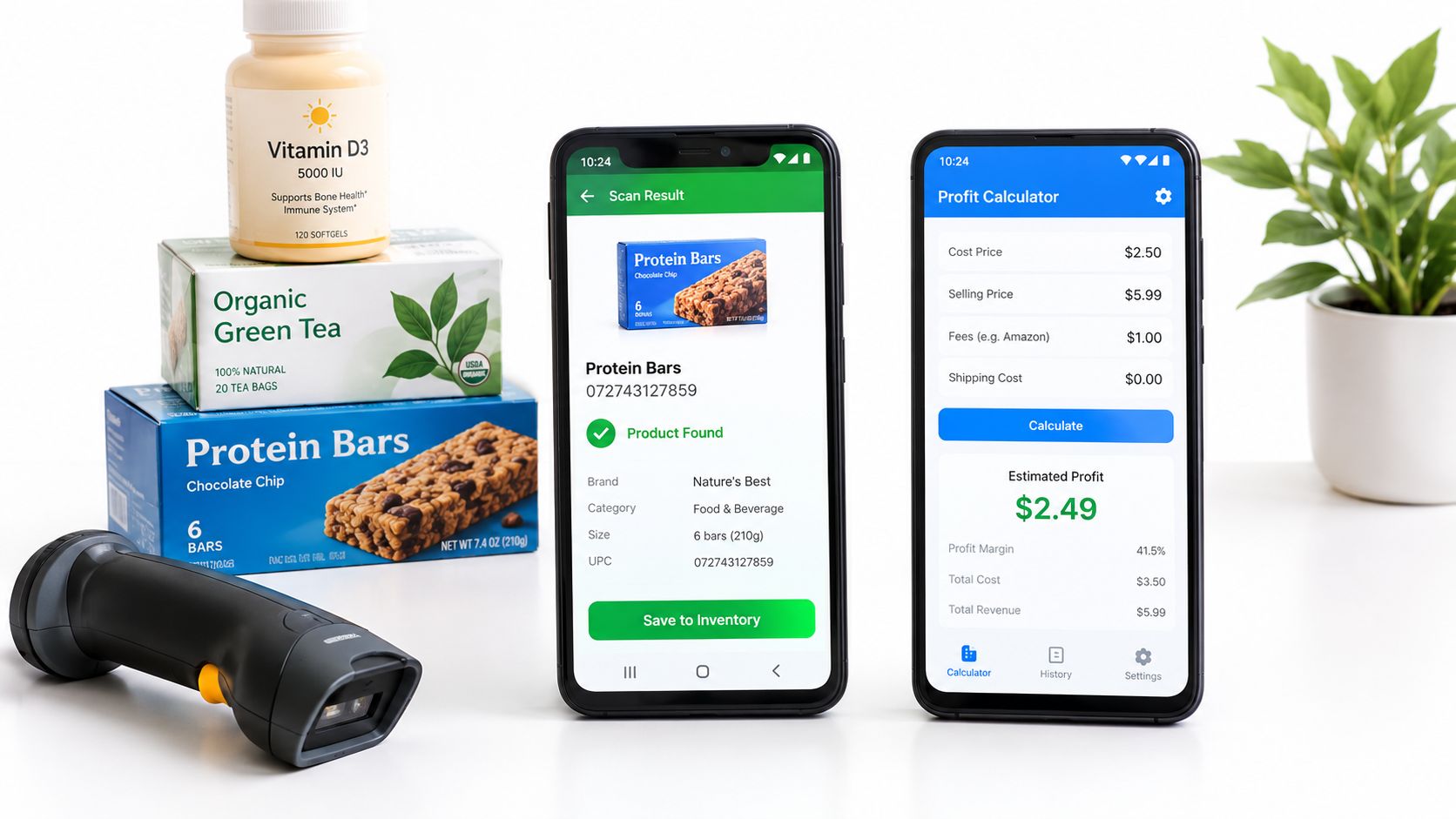
Higher resolution does not make maximum zoom a good default. Digital zoom enlarges blur without restoring detail. Hold the phone far enough away to fit the full code in frame, pause for autofocus, then move closer in small increments. A small barcode becomes easier to decode when the camera captures more usable pixels at that distance.
Adjust the light in the aisle. Tilt the item until overhead glare moves away from the bars. Use the flashlight on a dark label, then switch it off if it creates a white hotspot. Wipe dust from both the lens and the product surface. Fine grit in bins and warehouse aisles can soften every frame.
ScanFlip AI should earn its place by handling imperfect merchandise, not only clean packaging at home. A retail arbitrage scanning app needs to recognize repeated frames while you keep the code inside the preview, avoid covering the lens, and rotate a package when the bars cross a crease. Bluetooth dropouts and camera pauses cost more than a few seconds. They can leave a buy decision unfinished while another shopper takes the item.
Building a Fast Pricing Workflow with ScanFlip AI
A successful barcode read isn't a buy signal. It only identifies the item. The decision comes from comparing sold comps with your cost of goods, marketplace fees, shipping, and the condition you can realistically sell.
Suppose a clearance item costs $8, and realistic sold prices support a sale around $24. A gross difference of $16 sounds useful until fees and shipping reduce the take-home amount. If the item is oversized, fragile, slow to sell, or missing an accessory, the apparent spread may not justify the shelf space and handling.
That's why a reseller should set a minimum profit threshold before scanning. A green result should mean the expected net profit clears your floor after the relevant costs. A red result should be acceptable. Passing on weak inventory protects cash and keeps the death pile from growing.
Modern Android scanning tools increasingly distinguish themselves by calculating fees, shipping, and net profit instead of stopping at code recognition. This practical difference is described in this guide to Android scanners, apps, and hardware.
ScanFlip AI supports three identification methods:
- Barcode scanning for books, media, games, and boxed retail items with readable UPCs.
- AI photo scanning when there's no barcode, including shoes, apparel, vintage pieces, collectibles, and electronics.
- Text search for items you can identify by name but can't photograph or scan cleanly.
The useful part for sourcing is the pricing context. It aggregates sold comps across eBay, Poshmark, Mercari, Depop, Amazon, Whatnot, ThredUp, Facebook Marketplace, and TikTok Shop, then factors in platform fees, shipping, and buy cost to show expected net profit with a red or green flip-or-pass verdict.
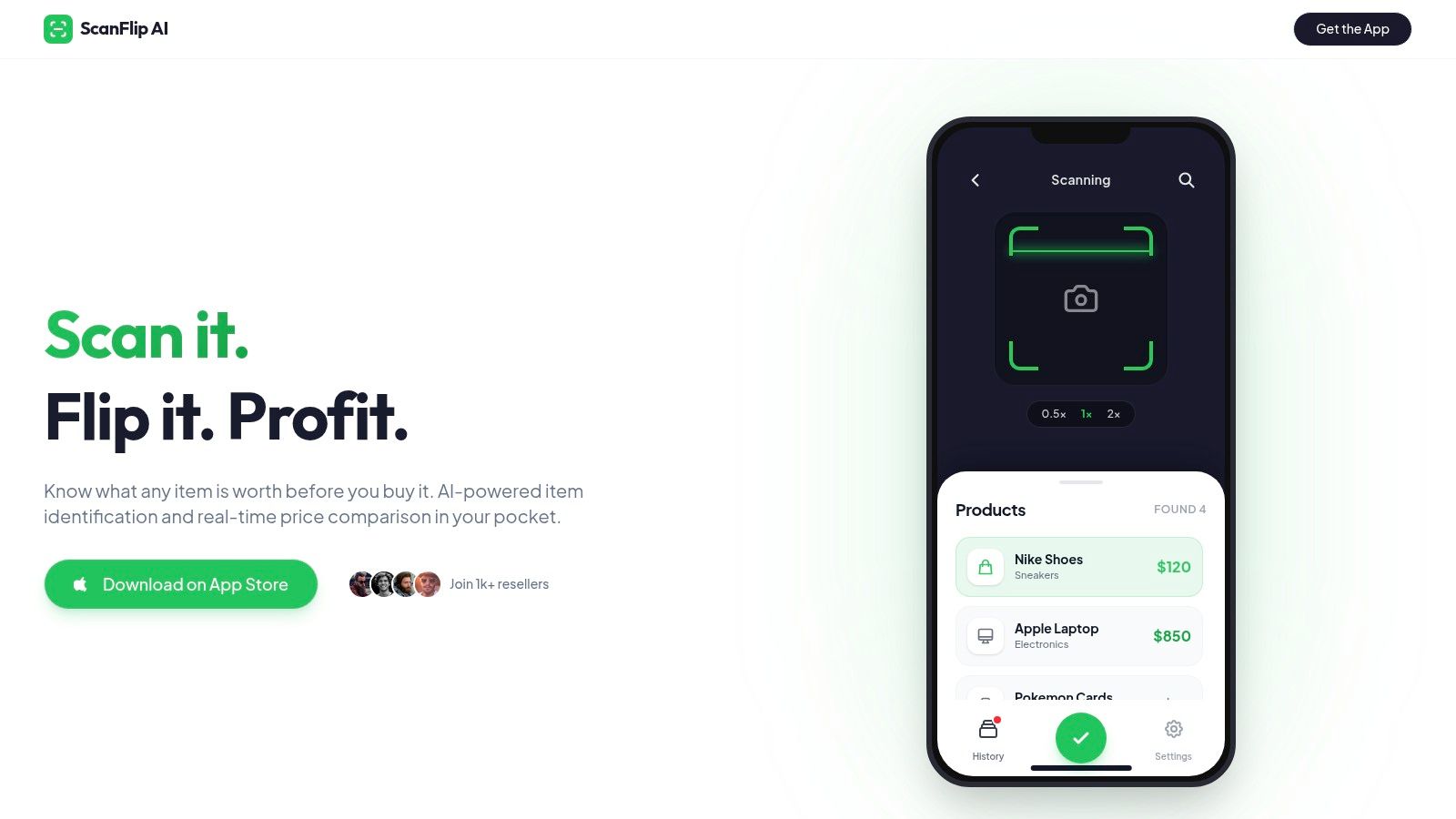
Use barcode mode first when the product code is intact. Switch to photo identification for an untagged jacket or collectible, and use text search when the item is boxed behind glass or too awkward to photograph. That fallback keeps a damaged label from ending the evaluation.
Don't use active listing prices as your ceiling. Sold comps tell you what buyers paid, while net profit tells you whether the buy still works after costs. Crosslisting tools such as Vendoo and List Perfectly can fit later in a reseller's stack, but the sourcing decision has to happen before the purchase.
Troubleshooting Common Android Scanning Failures
In a dusty warehouse aisle, a failed scan often starts with the item, not the app. Glare from shrink-wrap, a scratched UPC, a folded label, an unsupported symbology, camera-driver behavior, or battery saving can interrupt the workflow.
Camera performance also depends on configuration. Poor focus lowers accuracy, while processing too many formats or running image analysis on the main thread can burden real-time scanning. Limit supported formats when your inventory allows it, and let image processing run in the background. A scanner may also recognize only 10 barcodes per call, according to earlier Android scanning guidance.
Start with the physical label:
- Check contrast. A pale barcode on a pale package may need a different angle or a manual lookup.
- Check the surface. Glossy wrap and plastic sleeves can reflect the aiming pattern.
- Check the geometry. Flatten a folded label or rotate the item so the bars do not cross a crease.
- Check the format. A scanner configured only for UPC and EAN may not read every 2D symbol.
- Check the phone. Clean the lens, close heavy apps, and review battery optimization for the scanning app.
Do not keep retrying the same bad frame. Change the angle, distance, lighting, or identification method.
Independent testing shows why repeated attempts do not guarantee a result. In a real-world set of 68 images containing 514 expected barcodes, Dynamsoft detected 412 barcodes, an 80.2% detection rate, while Google ML Kit detected 120, or 23.3%. The benchmark reported precision of 99.3% for Dynamsoft and 96.8% for ML Kit, with average processing times of 116 ms and 46 ms, respectively, in the Dynamsoft and ML Kit accuracy comparison. For sourcing, detection coverage and processing speed are separate trade-offs.
Use multi-frame retries when a label is nearly readable. After a few changes to angle, distance, or lighting, stop scanning and switch to text search or AI photo identification. Search a rare book by title and edition details. For a collectible, photograph the front, back, maker mark, and distinctive features. The practical goal is a quick buy decision before another buyer reaches the aisle, garage-sale bin, or estate-sale table.
ScanFlip AI supports barcode scanning, AI photo identification without a barcode, and text search. It combines sold comps across major marketplaces with fees, shipping, and net profit to produce a red or green flip-or-pass verdict. Test the workflow at your next Goodwill run or estate sale through ScanFlip AI.