
Barcode Scanner Bluetooth
Bluetooth now dominates wireless barcode scanners, with 56.8% market share in 2025, but usable range in a thrift store is often closer to 30 to 50 feet because metal shelving, walls, carts, and people interfere with the signal. A Bluetooth barcode scanner can speed up sourcing, but only if it pairs reliably with your phone and works in the right connection mode.
You're standing in a Goodwill aisle with a possible $50 flip in one hand and your phone in the other. The scanner flashes, the phone does nothing, and the item goes back on the shelf while you fight with Bluetooth settings. That's the actual problem with choosing a barcode scanner Bluetooth setup. The hardware is mature, but “plug and play” still depends on the phone, the app, the scanner mode, and the store environment.
Table of Contents
- The Bluetooth Scanner Reality Check for Resellers
- Choosing the Right Hardware for Your Workflow
- Pairing Procedures and Mode Configuration
- Integrating Scanners with ScanFlip AI for Speed
- Troubleshooting Connectivity and Range Issues
- Maximizing Profit Through Faster Sourcing Decisions
The Bluetooth Scanner Reality Check for Resellers
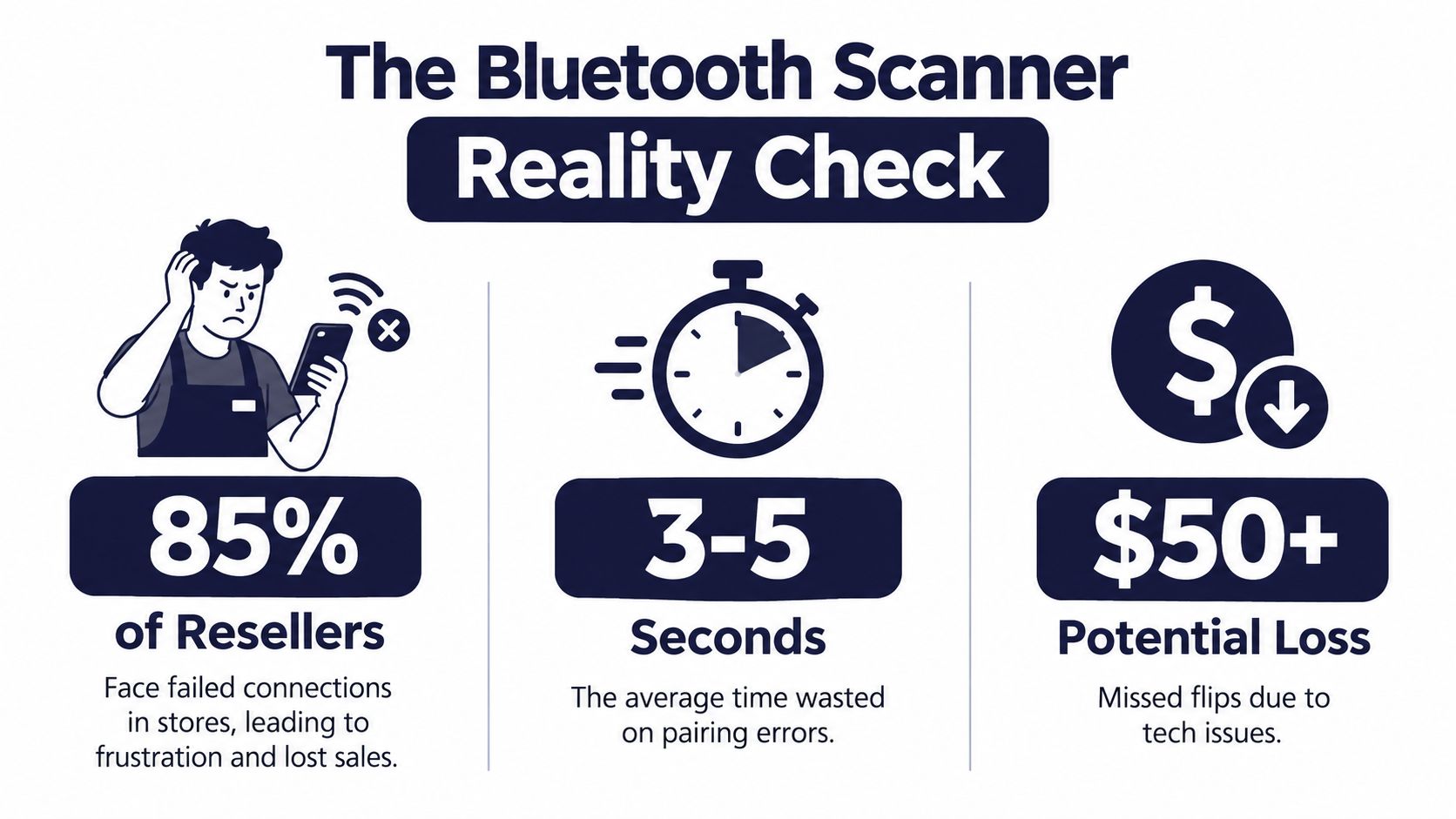
A scanner can look perfect on a product page and still fail during a sourcing trip. One inexpensive model connected at home, dropped the link in Goodwill, and stopped entering UPCs into the app. While that happened, another reseller could grab the boxed game or textbook. For resellers, scanner quality depends on the complete mobile workflow: phone compatibility, app input, connection mode, and recovery after a pairing failure.
Bluetooth solves the cable problem. It lets a scanner send data to a phone, tablet, or terminal while you move through aisles. Industry estimates place Bluetooth at 56.8% of the wireless barcode scanner market in 2025, while another estimate places it at 45.3% of the mobile barcode scanner segment in 2025. The categories differ, but both indicate that Bluetooth is a mainstream connection method rather than a specialist feature. (WorldMetrics barcode scanning statistics)
Why the aisle changes everything
A scanner that works beside your home router may struggle among metal shelving, crowded phones, and moving carts. Scanner reviews report pairing problems in busy wireless environments and place practical range for standard Bluetooth models around 30 to 50 feet. Longer distances generally depend on better hardware and favorable conditions. (Siemens Mobile barcode scanner review)
Resellers work in imperfect spaces. You reach through clothing racks, move around shelving, bend over book bins, and scan labels that may be scratched or faded. A scanner that requires clear line of sight can erase the time savings of dedicated hardware. The phone also matters. Some scanners send scans as keyboard input, while others require a specific app mode or pairing profile. If the app does not accept that input, a successful Bluetooth connection still produces no usable result.
Practical rule: Treat advertised range as a ceiling, not a promise about your actual sourcing route.
Industry reporting also indicates broad Bluetooth adoption across barcode operations, including 85% of barcode scanners supporting Bluetooth Low Energy. Those figures describe the wider market, not reseller results, so use them as context rather than proof that a particular device will improve your workflow.
Test the full chain before paying for a scanner: pair it with your actual phone, open the sourcing app, scan several different labels, lock and unlock the phone, and reconnect after moving out of range. Check whether scans enter the intended field instead of triggering unwanted app actions. A reliable barcode scanner Bluetooth setup is the one that keeps data moving through your phone and app during a full sourcing trip, not the one with the longest claim on its packaging.
Choosing the Right Hardware for Your Workflow
A Goodwill cart filled with books creates different demands from an estate sale table of boxed trading cards. You may reach through clothing racks, work around shelves, or scan labels while holding a phone in one hand. Start with that routine, then choose the scanner. Occasional sourcing may not justify dedicated hardware. Continuous scanning of books, media, games, or retail boxes can reduce hand movement and manual typing.
The Bluetooth barcode scanner market is established hardware rather than a niche experiment. One Bluetooth barcode scanner market report gives projections for substantial growth, but market size does not show whether a particular device will repay its cost. Your phone, sourcing app, and scanner mode determine that outcome.
Match the scanner to the job
Choose the connection and scan capability that fit a mobile-first workflow:
- Direct Bluetooth pairing: Sends scan data to an iPhone, iPad, or Android app without a receiver. It keeps the kit light, provided the app accepts the scanner's input.
- Cradle-assisted Bluetooth: Offers a charging base and, on some models, greater coverage. The trade-off is carrying and charging another component.
- USB fallback: Gives you a fixed-workstation option when Bluetooth becomes unreliable.
- 2D capability: Handles QR codes and barcodes displayed on screens, as well as printed UPC labels.
Check the radio and range specifications, but treat them as operating limits rather than a sourcing guarantee. Devices commonly list the 2.4 to 2.5 GHz band and Bluetooth 4.0 or Bluetooth 4.0 BLE support. Open-space range may be about 10 meters to 100 meters, depending on the model and whether a communication base is used. A Star Micronics model lists a 50-meter, or 164-foot, open-space range, while a base-assisted configuration specifies up to 100 meters line of sight. (Star Micronics wireless Bluetooth scanner specifications) Shelves, people, walls, and the phone's position can reduce practical coverage.
Check the mode before buying
HID mode makes the scanner behave like a keyboard, usually the simplest choice for entering UPC digits into an active field. SPP and BLE modes can support app-specific integrations, but host support and setup vary. A successful Bluetooth pairing is not enough if ScanFlip AI or another sourcing app cannot receive the data correctly.
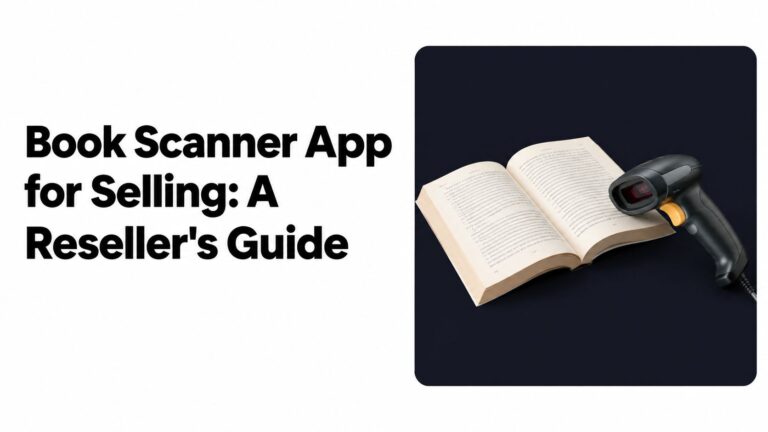
Before ordering, confirm documented support for iOS, Android, HID, SPP, BLE, and reset procedures. Use this barcode scanner guide for resellers when comparing a dedicated unit with phone-based scanning. Pair the actual scanner with your phone, open the app, and test several labels before committing. A device that refuses to enter digits into your workflow is an expensive paperweight, regardless of its review count or advertised distance.
Pairing Procedures and Mode Configuration
A scanner can show as connected while sending nothing usable to your sourcing app. The problem usually comes from the Bluetooth profile. One vendor manual lists Bluetooth HID as the default, with Bluetooth SPP and Bluetooth BLE available separately. HID sends characters as keyboard input, while SPP and BLE depend more heavily on the app and phone's implementation. Check the Bluetooth scanner connection mode manual before changing modes.
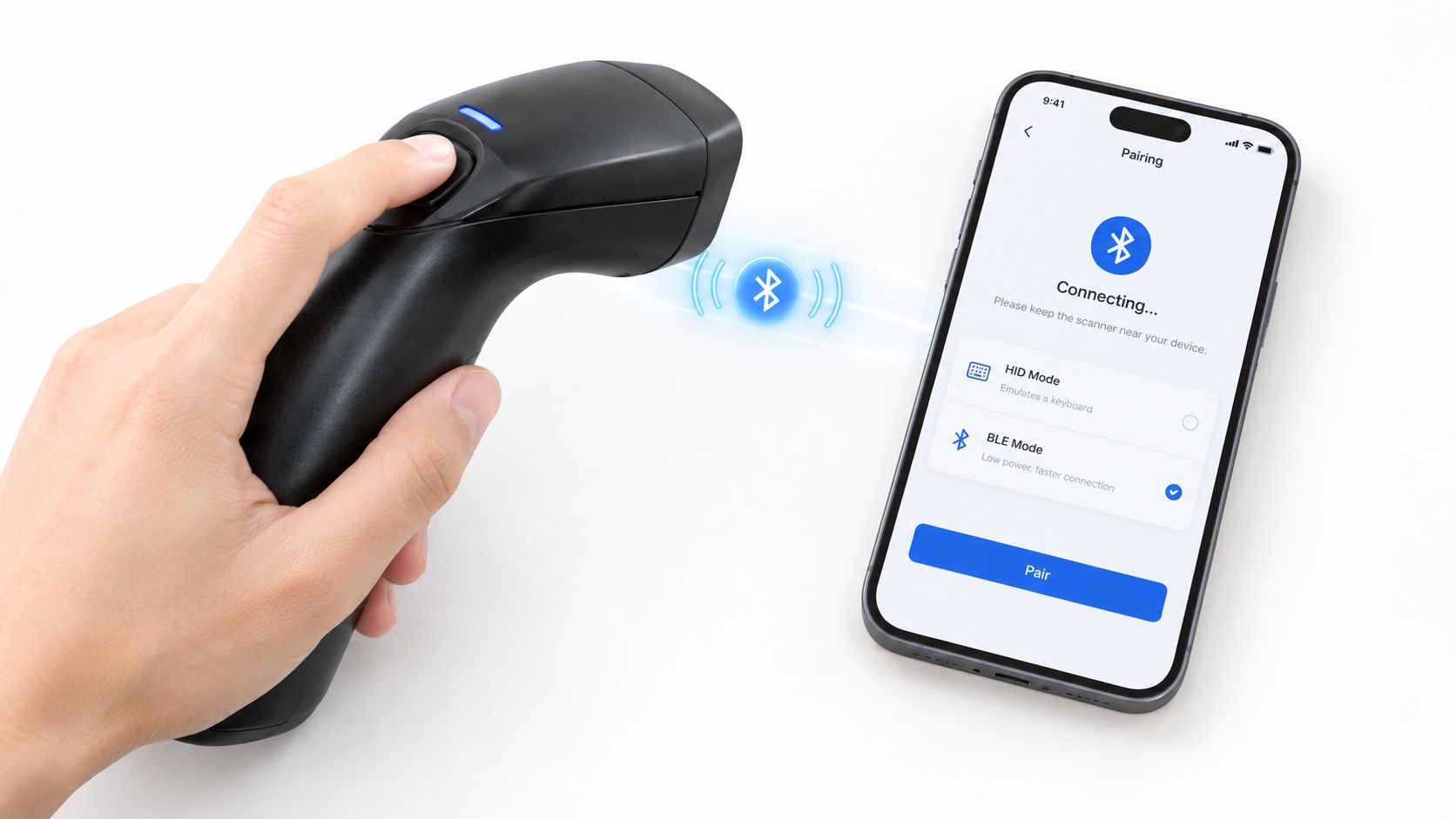
Start with a clean pairing routine. Charge the scanner, place it in its cradle or base if the model uses one, and remove old scanner entries from the phone. Otherwise, the unit may reconnect to a previous device instead of the phone in your hand.
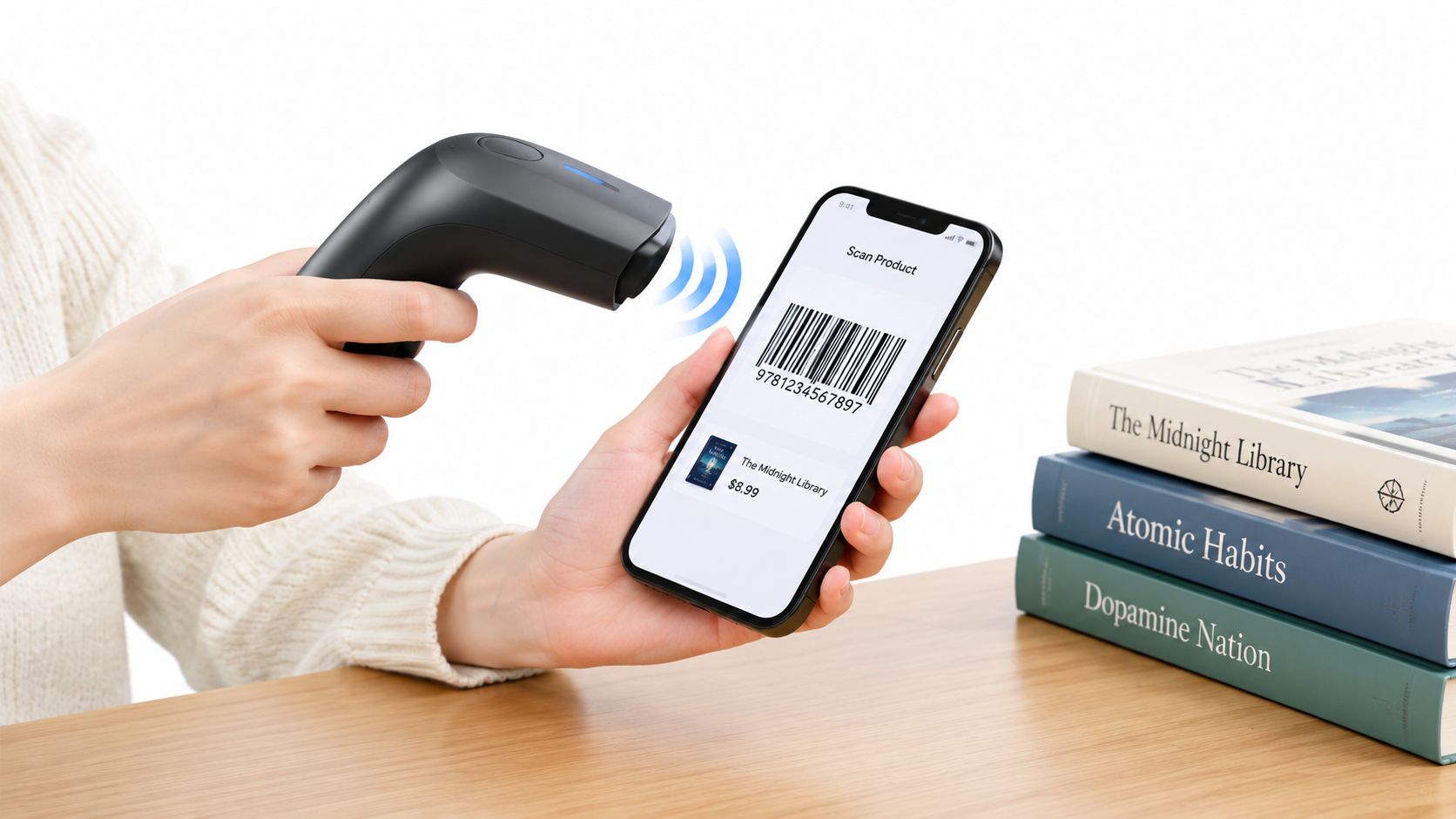
Many scanners change profiles through configuration barcodes rather than the phone's Bluetooth menu. Scan the manufacturer's pairing code, select HID for keyboard input, then open a plain text field and scan a known barcode. The digits should appear as typed characters. This quick test separates a working connection from a scanner that merely appears in the Bluetooth list.
Check the scan suffix before using the device in a buying run. Some units append Enter or Tab after every scan. That can move the cursor through a workflow, but it can also submit a search before the app has finished receiving the barcode.
Use SPP or BLE only when the specific app requires it. Switching profiles without checking compatibility can leave the scanner connected but unable to pass data into ScanFlip AI or another sourcing tool.
iPhone and iPad users can usually begin with HID because the scanner acts as an external keyboard. Some iPad POS configurations use the scanner's HID default but require MFi or SSI mode when the on-screen keyboard must remain available. The Zebra scanner setup for iPad POS documentation demonstrates why the app's input requirements matter as much as the pairing screen.
Android calls for a device-specific test. A compatibility manual notes that some Android phones provide weak Bluetooth HID support, while Android generally supports SPP well. That does not make SPP a universal fix. Pair the exact scanner with the exact phone and app before buying multiple units for a sourcing team, as explained in this barcode scanning guide for Android resellers.
Battery settings affect aisle speed too. Aggressive sleep saves power but adds delays when you repeatedly pick up the scanner. Staying awake responds faster and demands more charging discipline. Keep the cradle visible, run a full sourcing session, and test inside the actual app rather than relying only on the phone's Bluetooth settings.
A reliable pairing routine is worth more than a long-range claim you can only use in an empty warehouse.
Integrating Scanners with ScanFlip AI for Speed
A reseller standing beside a full cart needs a fast answer, not another app-switching task. A Bluetooth scanner handles UPC entry, while ScanFlip AI handles identification, sold comps, fees, shipping, and the buy decision. That division keeps the phone camera available and reduces typing errors during repetitive scans.
Start with the item, then choose the input method. For a barcoded book, game, media item, or boxed product, open the barcode field and scan the UPC. If the code is missing or unreadable, use the AI photo scan for clothing, shoes, collectibles, or untagged electronics. Text search fits items that cannot be photographed or scanned cleanly when you know the name, model, or identifying phrase.
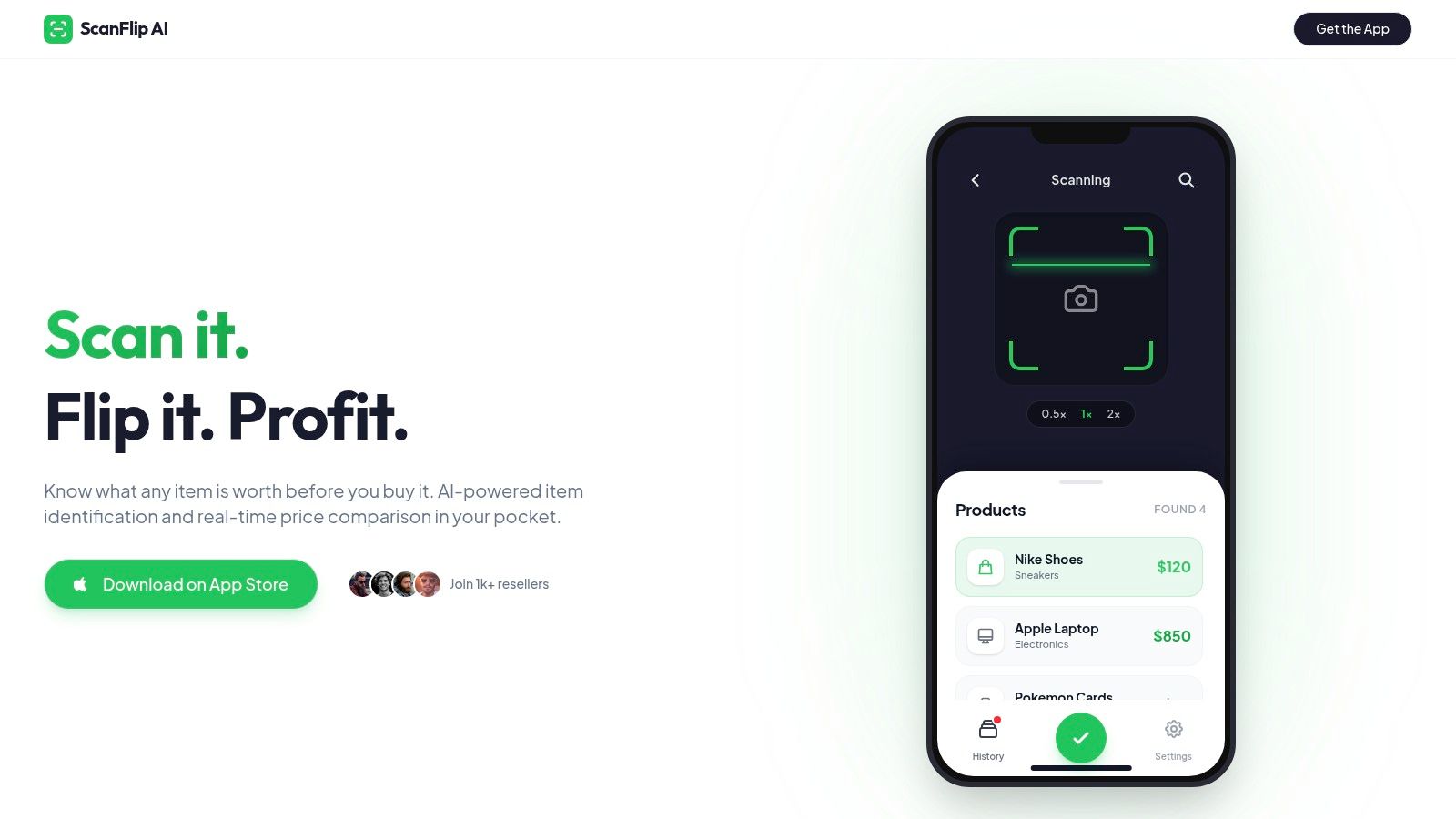
The practical mobile loop is short: wake the phone, place the cursor in the barcode field, scan, and review the result. A scanner configured for Bluetooth HID can send digits directly into that active field. If the cursor is elsewhere, the hardware may work correctly while the app receives nothing useful, so confirm the field before scanning a cartful of items.
ScanFlip AI compares sold comps, rather than asking prices, across eBay, Poshmark, Mercari, Depop, Amazon, Whatnot, ThredUp, Facebook Marketplace, and TikTok Shop. It also calculates expected net profit after platform fees, shipping, and buy cost, then shows a red or green flip-or-pass verdict. The scan-to-buy workflow shows how that sequence fits into sourcing.
A scan identifies an item. It does not make the item profitable.
Suppose a garage-sale book costs $3 and comparable sold prices support a $22 sale. The gross spread is $19, before marketplace fees, shipping, packing supplies, returns, and labor. If the resulting net profit misses your threshold, passing is the correct outcome even though the scan succeeded.
Use the scanner to remove input friction, not to justify buying faster. Weak sell-through, saturated categories, missing parts, and lengthy preparation can erase an attractive spread. The best mobile workflow is the one that moves cleanly from barcode, to verified comps, to a clear buy-or-pass decision.
Troubleshooting Connectivity and Range Issues
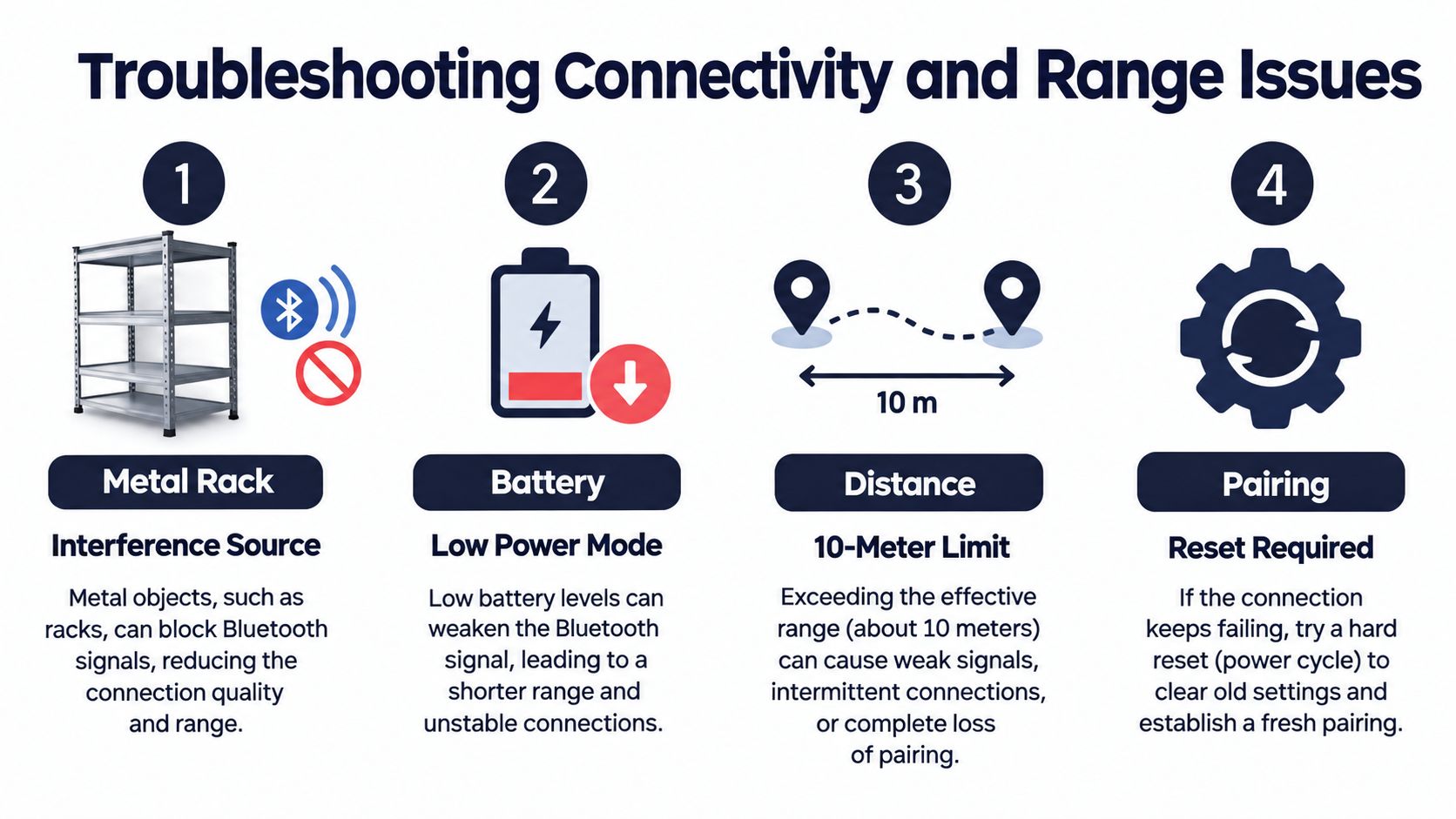
A scanner that fails halfway through a Goodwill aisle usually has a specific cause. It may still be paired with another phone, set to the wrong profile, low on battery, or blocked by metal shelving. Busy wireless environments can interfere with pairing, while racks, walls, carts, and clothing reduce practical range.
Manufacturer specifications may cover distances from about 10 meters to 100 meters, depending on the scanner, base, and line of sight. Those figures are a starting point, not a sourcing guarantee. Test the maximum working distance in the stores where you scan, especially if your workflow keeps the phone in one hand and the scanner in the other.
Fix pairing refusal first
Pairing problems are easier to isolate in a fixed order:
- Forget the scanner: Remove it from the phone's saved Bluetooth devices, reset the scanner, and pair again.
- Confirm the profile: HID should enter digits into an active text field. If the app requires SPP or BLE, select the documented mode for that model.
- Close competing connections: Disable Bluetooth on nearby phones that have previously used the scanner.
- Restart both devices: Power-cycle the scanner and restart the phone to clear a stuck session.
- Check firmware: Apply a manufacturer update only when the instructions match your scanner model.
If the scanner connects but ScanFlip AI receives nothing, open a notes field and scan a known barcode. Digits appearing in notes confirm that the Bluetooth link works. The fault is then likely the app, the selected input field, or platform compatibility. No digits point to the mode, pairing, battery, or hardware.
Test range against the store layout
Keep the phone and scanner on the same side of a metal rack, move closer when a scan fails, and avoid burying the phone in a bag or under clothing. A base-assisted scanner may hold a connection farther from a fixed station, while direct Bluetooth pairing is usually more practical for mobile sourcing. Choose the arrangement that matches where your phone stays during scanning.
Battery and sleep settings can create intermittent failures that look like pairing defects. Charge before leaving, check the scanner's sleep behavior, and carry a charging cable or backup phone when scanning supports the trip's buying decisions. At a checkout or packing station, wired USB or a dedicated 2.4 GHz receiver can provide a steadier connection than Bluetooth.
If manual entry takes less time than repairing the setup in the aisle, stop troubleshooting, record the item another way, and fix the hardware at home.
Maximizing Profit Through Faster Sourcing Decisions
A Bluetooth scanner earns its place by shortening the gap between finding an item and deciding whether to buy it. It won't improve a weak sell-through rate or make an oversaturated category attractive. It can remove typing, camera juggling, and repeated marketplace searches from a workflow that already makes sense.
The best setup is simple. Scan a barcode when one exists, use a photo scan for untagged items, and use text search when the product can't be captured cleanly. Check sold comps, subtract fees, shipping, and cost of goods, then make a red or green flip-or-pass decision before the item enters your death pile.
A reliable scanner also protects attention. In a Goodwill aisle or estate-sale garage, hesitation costs opportunities, while rushed buying creates dead inventory. Test the pairing at home, test the range in a real store, and choose the connection mode your phone and app support.
ScanFlip AI gives resellers three ways to check an item, AI photo scan with no barcode needed, barcode scan, and text search, then compares sold prices across major marketplaces and calculates net profit after fees. Try the workflow at ScanFlip AI before your next sourcing trip and make the buy-or-pass call while the item is still in your hand.